
Using the WrestlingIQ Kiosk
Tip: For another quick step-by-step run through of the WrestlingIQ Kiosk, you can revisit the Tutorial directly in the Kiosk app/browser at the bottom of the screen.

This article will cover:
- Checking wrestlers in with the WIQ Kiosk
- Why an athlete may be unable to check in for class
- See who's checked in and view your class schedule
- Reloading the kiosk
- Using a general check in and other settings
- Branding the kiosk
Learn more about setting up the WrestlingIQ Kiosk here
1. Checking wrestlers in with the WIQ Kiosk
A club admin should assist with setting up the WrestlingIQ Kiosk on a tablet. Once logged into the kiosk you are ready to start check in. There are two ways athletes can check in for practice:
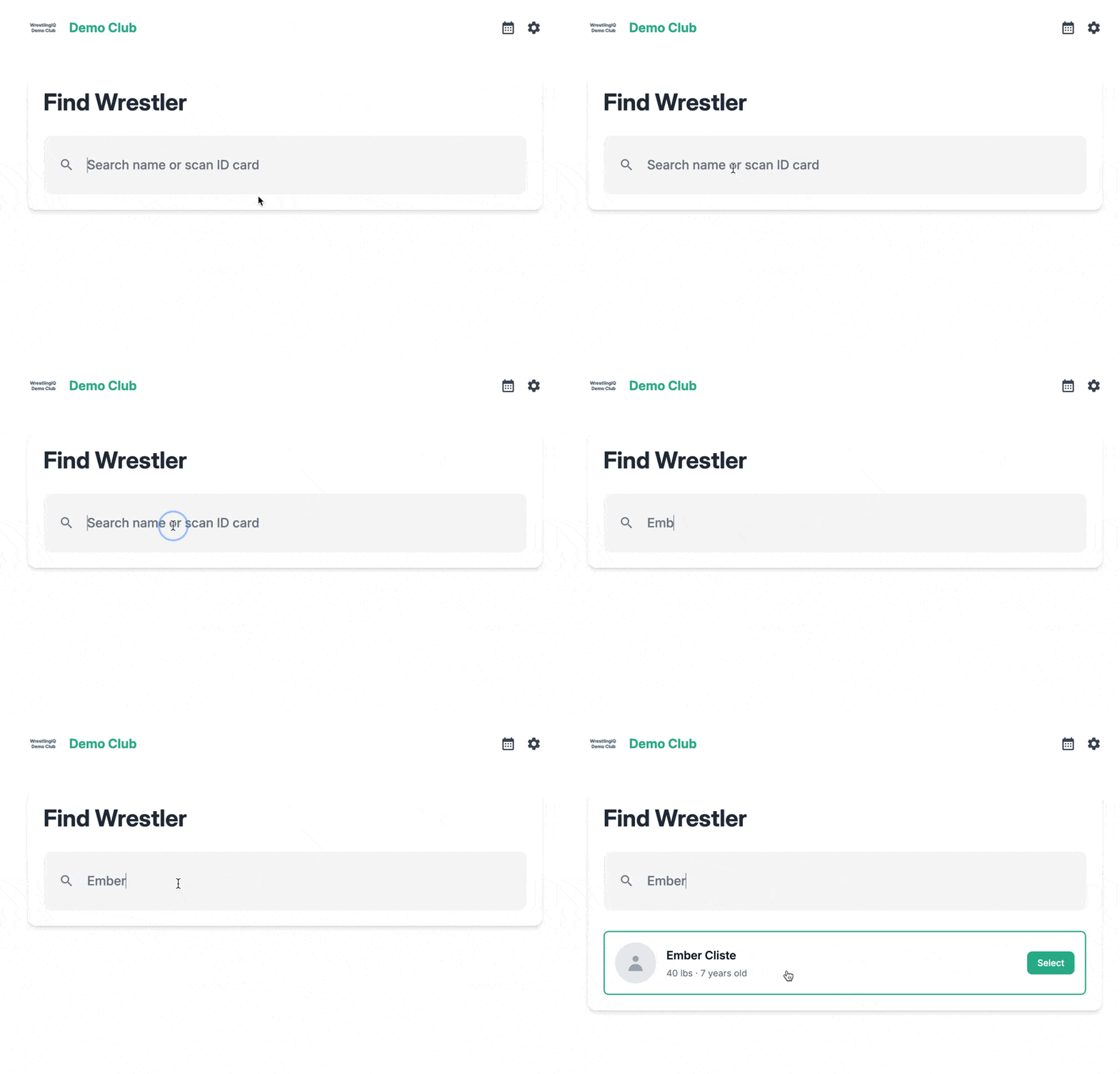
- Typing their name into the Find Wrestler search
- Scanning their WIQ ID card (iOS app only). Here is more about where parents/wrestlers can find their WIQ ID card.
Parents/athletes should search and select their name OR scan their WIQ ID card.
|
|
|
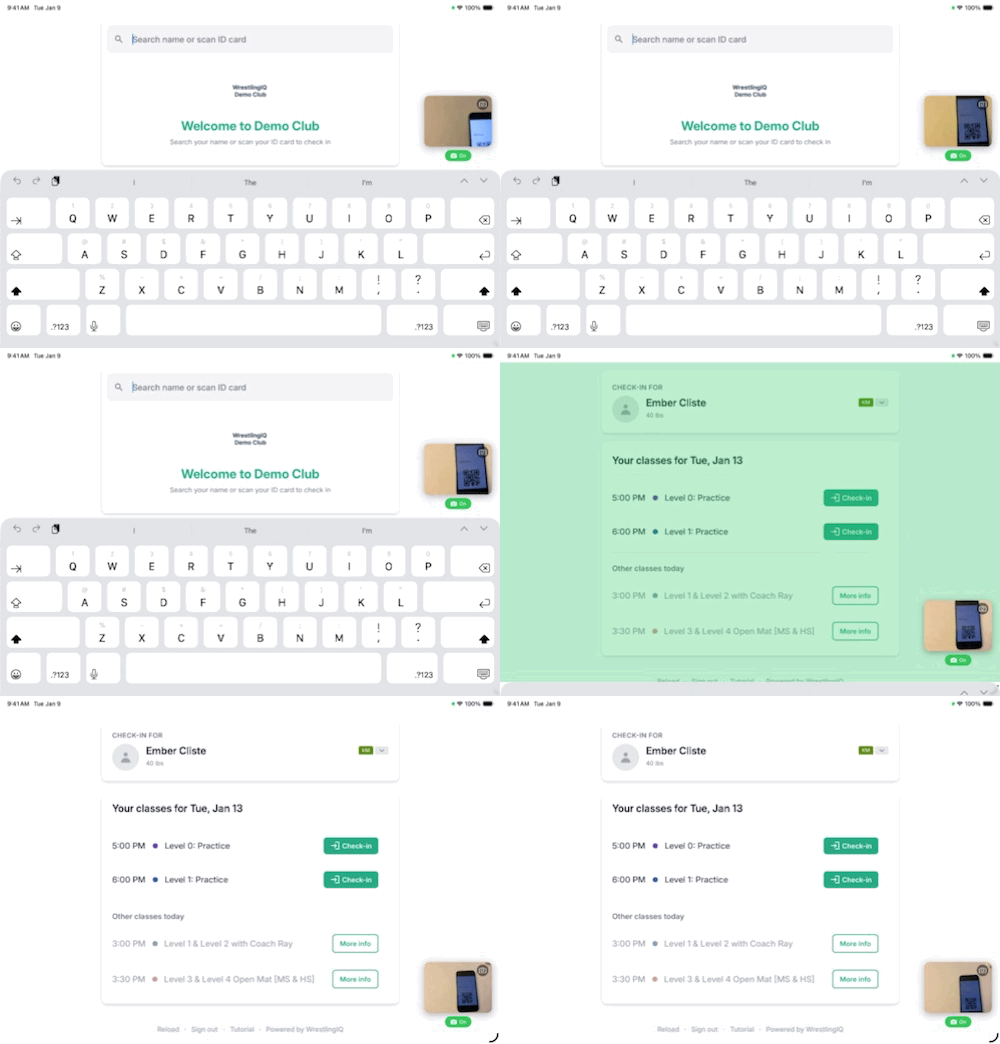
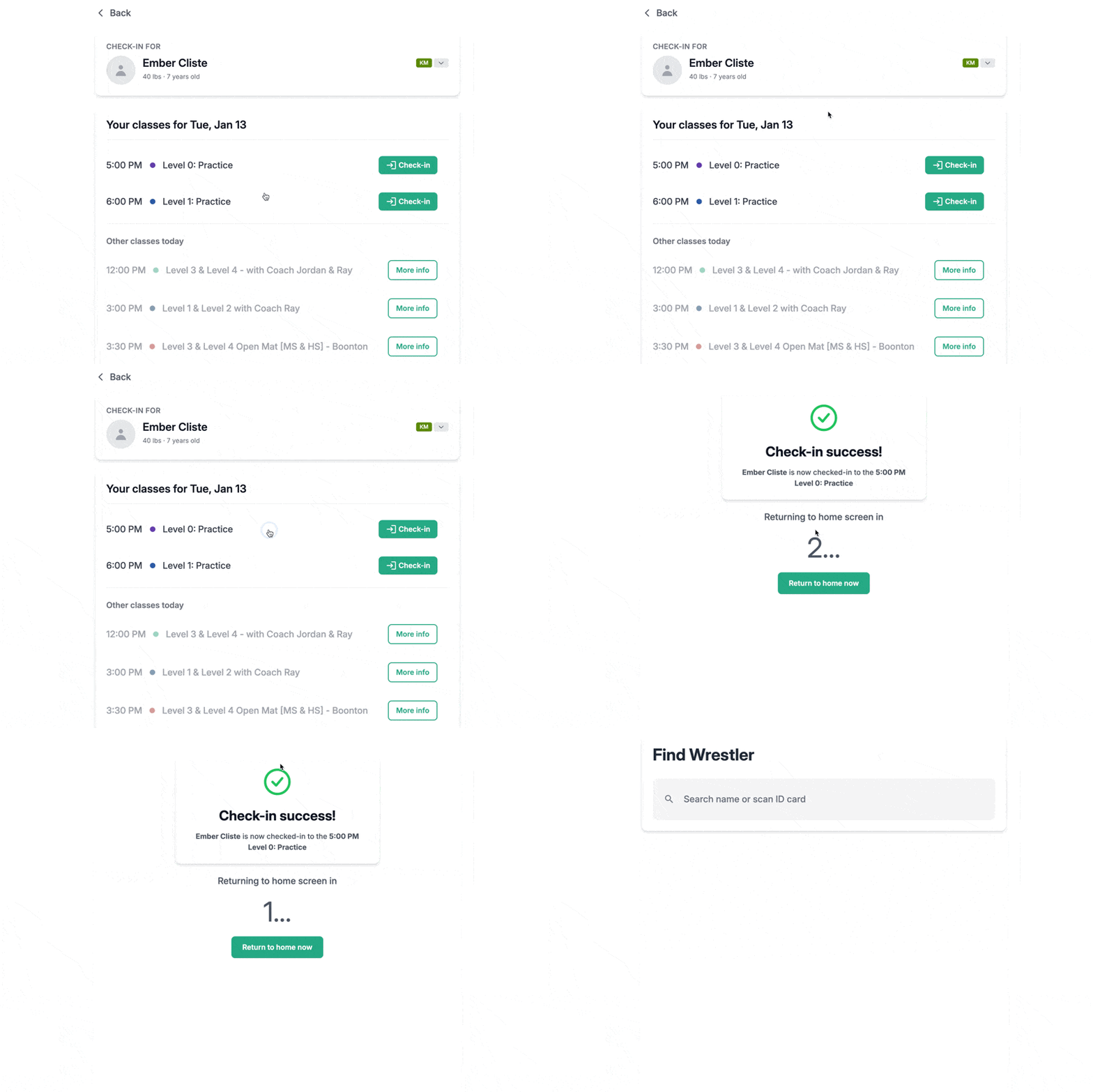
The parent/athlete will then select the class that they are checking in for. Classes the wrestler is eligible for show a "Check-in" button. Ineligible classes show why they can't check in.
Learn more about Apple's Guided Access feature that can be used to limit a device to a single app so that the kiosk can be locked down when in use.
2. Why an athlete may be unable to check in for class
There are a few different reasons that an athlete may not be able to check in for a class. In this case there will be a pop up that explains the specific issue that is blocking the check in.
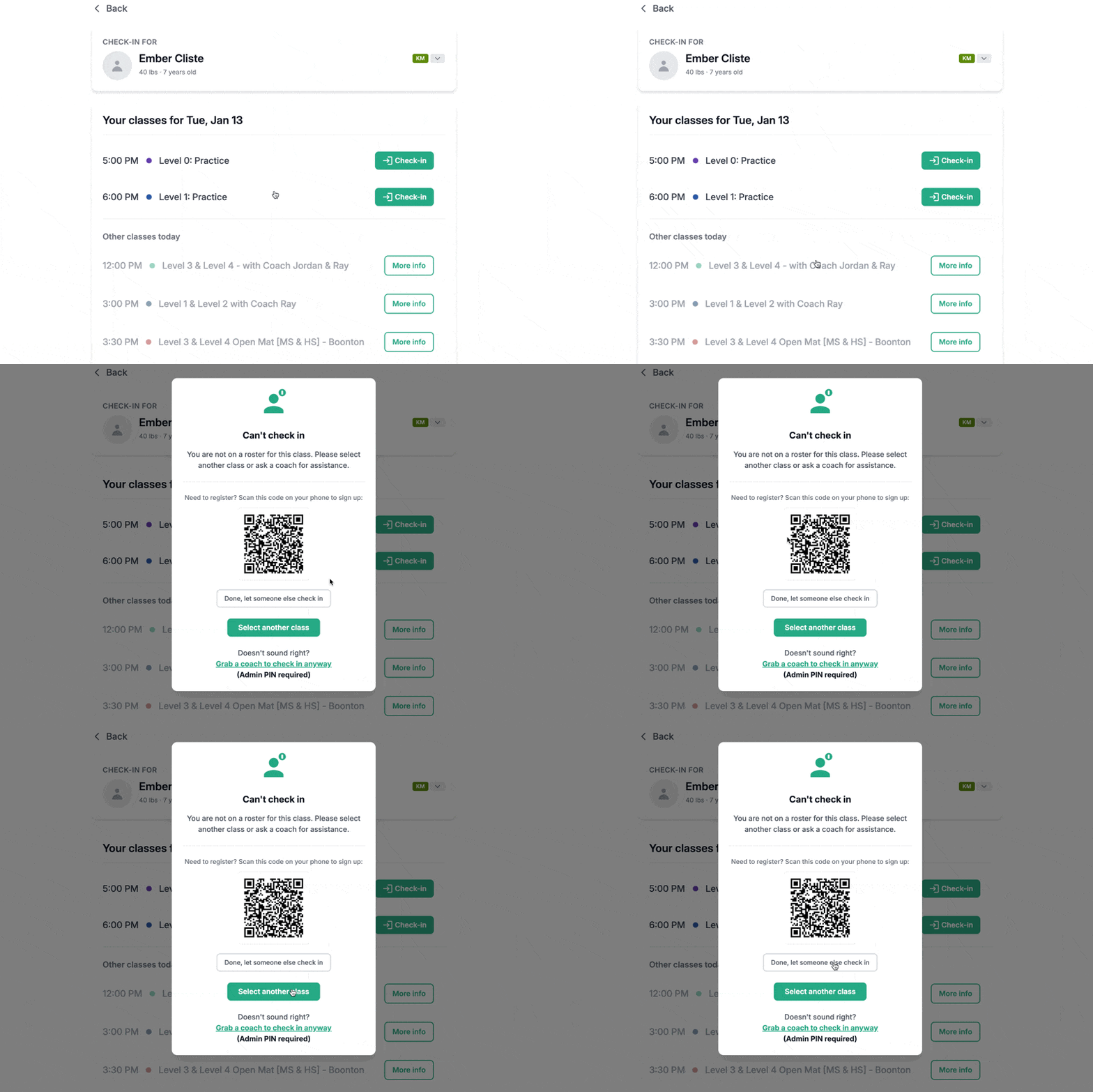
Reasons that the athlete may not be able to check in include:
- The wrestler is not assigned to the roster linked to this class. The wrestler is not assigned to the roster linked to this class. This usually indicates a problem with their registration. E.g. they are not on the roster because they have not paid for the correct class.
When making calendar events, make sure you link your practice to the appropriate rosters to get an accurate attendance list.
- The wrestler's subscription is currently paused. They'll need to resume their subscription to check in.
- The wrestler has an overdue payment. They'll need to update their payment method to check in.
- The wrestler's AAU or USAW membership is missing or expired. They'll need to record their USAW or AAU membership into WrestlingIQ to check in. This is based on team settings for USAW/AAU requirements.
Admin Override
To override any of these and allow an athlete to check in, use your Admin PIN that is associated with the kiosk. (more info on how to find your Admin PIN)
3. See who's checked in and view your class schedule
Tap the calendar icon in the top right hand corner to see your class schedule and attendee lists.
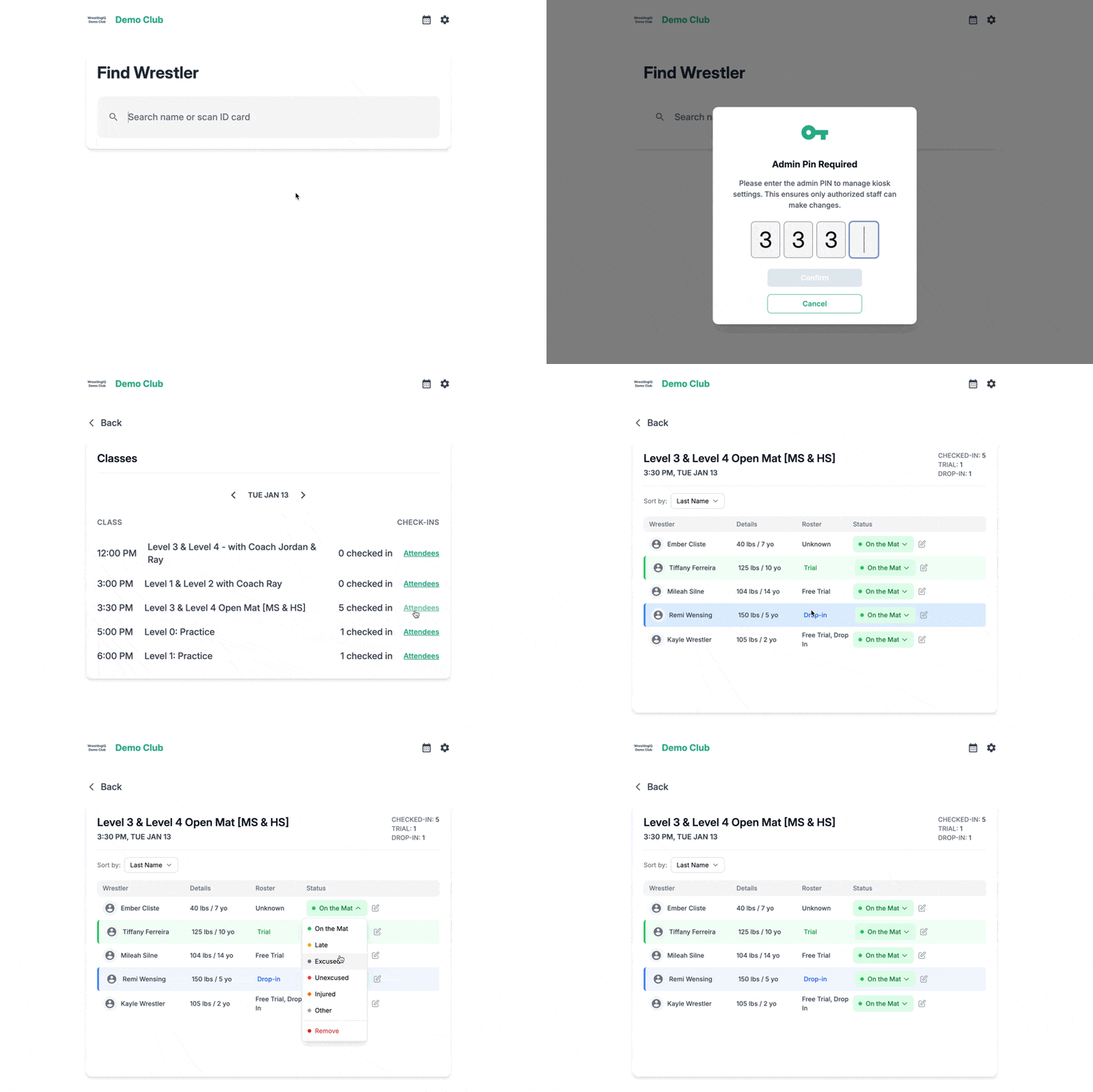
Drop-in and trial check-ins are highlighted so you can easily spot new visitors.
4. Reloading the kiosk
The kiosk automatically refreshes events every 45 minutes and loads fresh events each new day. If you add or remove an event and need an immediate update, tap Reload in the footer.

5. Using a general check in and other settings
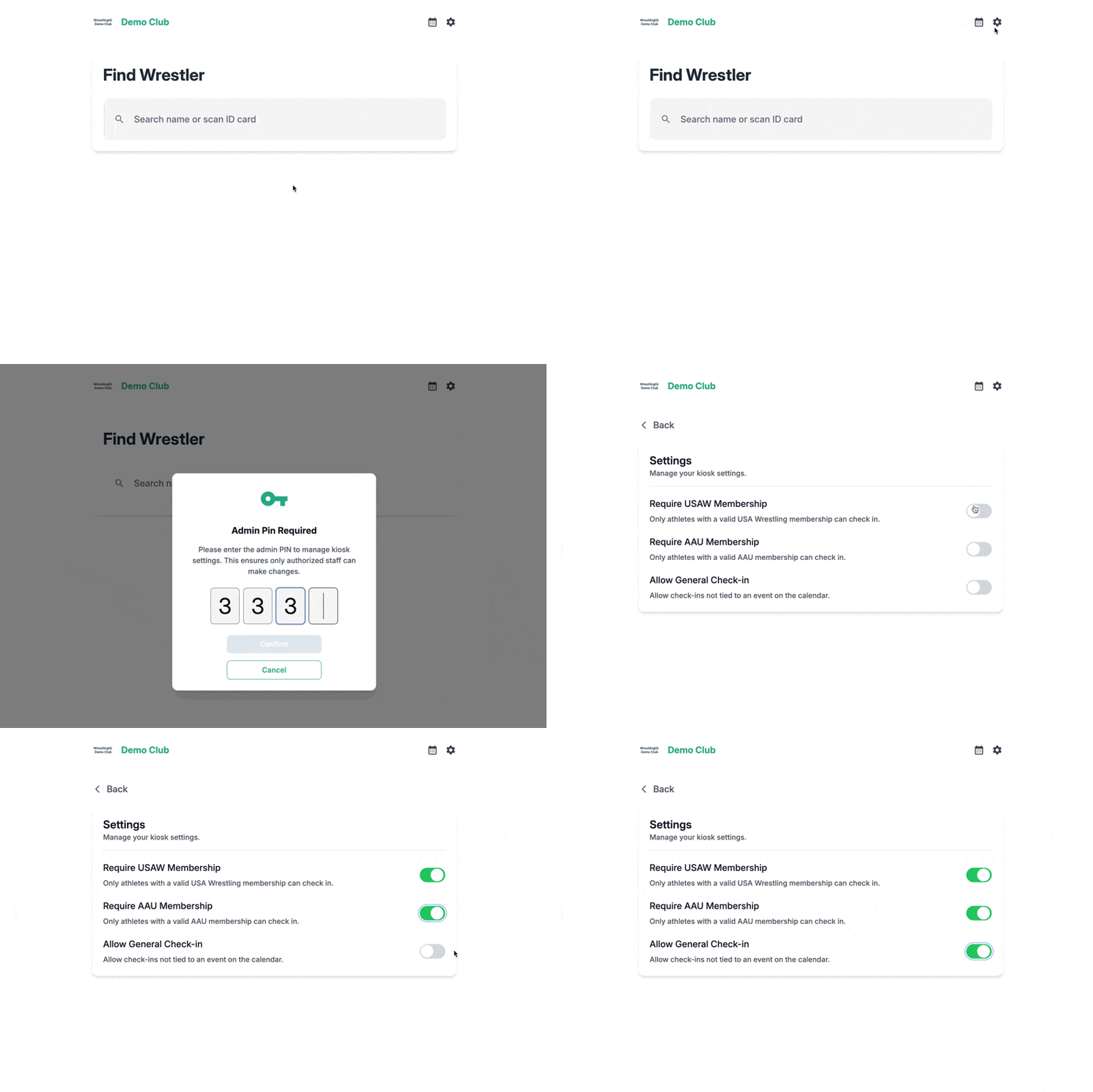
Other setting that can be found on the kiosk include:
General Check-in: Enable this to allow check-ins without selecting a specific class. Great for tracking general facility access.
AAU/USAW Requirements: Toggle whether membership verification is required at check-in. Must be enabled on your team account first.
6. Branding the kiosk
Add your team logo and colors in your WrestlingIQ team settings to brand your kiosk experience.
